How to Redo Visual Studio Code: A Comprehensive Guide to Customization

The Complete Overview of Redoing Visual Studio Code
Visual Studio Code (VS Code) is a powerful, open-source code editor that has become a favorite among developers worldwide. Its versatility, extensibility, and rich feature set make it an excellent choice for coding, debugging, and customizing workflows. However, to truly harness its potential, knowing how to redo Visual Studio Code to suit your specific needs is essential. This process involves understanding the core mechanisms, exploring extensions, and adopting best practices for customization.
Historical Background and Evolution
VS Code was first released by Microsoft in 2015, aiming to provide a lightweight yet powerful code editor that could cater to various programming languages and frameworks. Since its inception, it has evolved significantly, incorporating community feedback and adding new features with each update. The ability to redo and customize VS Code has been a cornerstone of its success, allowing developers to tailor the editor to their unique workflows and preferences.
Core Mechanisms: How It Works
At its core, VS Code's customization capabilities revolve around its use of extensions, settings, and keybindings. Extensions add new features or languages to the editor, while settings allow users to configure various aspects of the editor's behavior. Keybindings, on the other hand, enable users to reassign keyboard shortcuts for commands, enhancing productivity and personalizing the coding experience.
Key Benefits and Crucial Impact
Redoing Visual Studio Code offers several significant advantages that can dramatically improve a developer's productivity and workflow. By customizing the editor, developers can create an environment that is not only more efficient but also more enjoyable to work in.
"Customization in VS Code is like having a tailor-made suit for your coding needs. It fits perfectly, enhances your productivity, and makes you look forward to every coding session."
Major Advantages
- Enhanced Productivity: Custom keybindings and extensions can streamline workflows, reducing the time spent on repetitive tasks.
- Personalized Environment: Tailoring the editor's appearance and behavior to match individual preferences creates a more comfortable and efficient working environment.
- Improved Code Quality: With the right extensions and settings, VS Code can provide advanced code completion, linting, and debugging features, leading to cleaner, more maintainable code.
- Extensibility: The vast ecosystem of extensions allows developers to add support for virtually any programming language, framework, or tool they need.
- Community Support: A vibrant community of developers contributes to VS Code's growth, sharing extensions, themes, and settings profiles, making customization easier and more accessible.
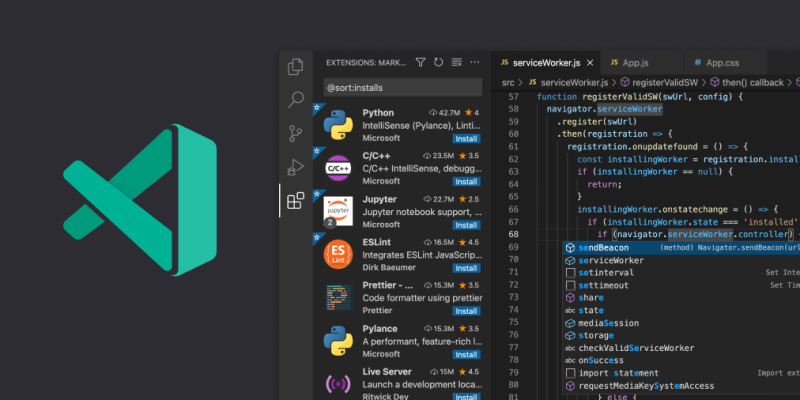
Comparative Analysis
| Feature | Visual Studio Code | Alternative Editor |
|---|---|---|
| Customization Options | Rich set of extensions, settings, and keybindings | Varies; some editors may lack the depth of customization |
| Extension Ecosystem | Large and active community contributing extensions | Smaller or less diverse ecosystem |
| Performance | Lightweight and performant, even with many extensions | Performance may vary; some editors can become resource-intensive |
| Cross-Platform Support | Available on Windows, macOS, and Linux | Varies; some editors may have limited platform support |
Future Trends and Innovations
As VS Code continues to evolve, several trends and innovations are shaping its future. The integration of AI-powered features, such as intelligent code completion and automated refactoring, is expected to enhance productivity further. Additionally, improvements in extension development and performance will likely expand the editor's capabilities and maintain its position as a leading code editor.The growing emphasis on accessibility and inclusivity in tech will also influence VS Code's development, with more customization options aimed at accommodating diverse user needs and preferences.
Table of Contents
- The Complete Overview of Redoing Visual Studio Code
- Historical Background and Evolution
- Core Mechanisms: How It Works
- Key Benefits and Crucial Impact
- Major Advantages
- Comparative Analysis
- Future Trends and Innovations
- Conclusion
- Comprehensive FAQs
- Q: What are the first steps to redo Visual Studio Code?
- Q: How can I install extensions in VS Code?
- Q: Can I create custom themes for VS Code?
- Q: How do I modify keybindings in VS Code?
- Q: Are there resources available for learning advanced customization techniques?

Conclusion
Knowing how to redo Visual Studio Code is a valuable skill for any developer looking to maximize their productivity and create a personalized coding environment. Through extensions, settings, and keybindings, VS Code offers a vast array of customization possibilities. By leveraging these features, developers can tailor the editor to their unique workflows, enhancing their coding experience and improving overall efficiency.Comprehensive FAQs
Q: What are the first steps to redo Visual Studio Code?
A: Begin by exploring the Extensions marketplace to find tools that match your needs. Then, navigate to the Settings (JSON) file to customize configurations and keybindings.
Q: How can I install extensions in VS Code?
A: You can install extensions by clicking on the Extensions icon on the left sidebar, searching for the desired extension, and clicking the "Install" button.
Q: Can I create custom themes for VS Code?
A: Yes, you can create custom themes by editing the settings.json file or using extensions like "Theme Generator" to design your own color schemes.
Q: How do I modify keybindings in VS Code?
A: To modify keybindings, open the Command Palette (Ctrl+Shift+P), type "Preferences: Open Keyboard Shortcuts (JSON)," and edit the keybindings.json file to assign new shortcuts or reassign existing ones.
Q: Are there resources available for learning advanced customization techniques?
A: Yes, the VS Code documentation, community forums, and YouTube tutorials offer extensive resources for learning advanced customization techniques and best practices.
Leave a Comment
Comments are moderated before appearing. The data you submit is processed according to the Privacy Policy of stanford.edu.