How to Remove Table in Excel: A Comprehensive Guide to Streamlining Your Spreadsheets
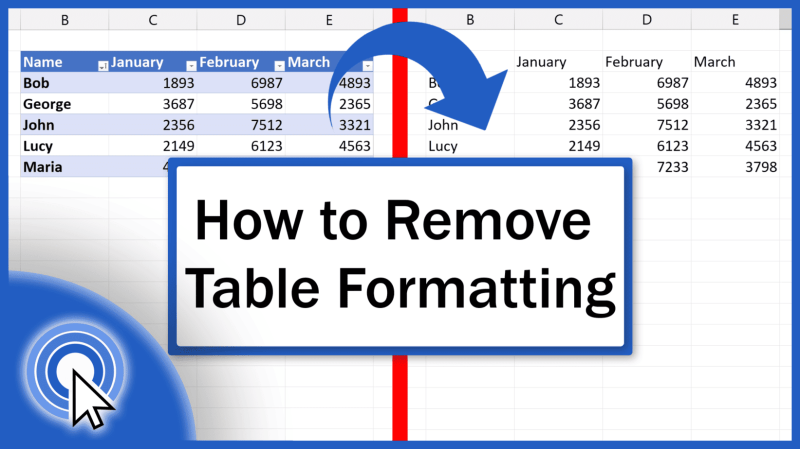
The Complete Overview of Removing Tables in Excel
Excel, a cornerstone of data analysis and management, offers powerful tools for organizing and presenting information. However, as complex projects unfold, unnecessary tables can clutter your spreadsheet, hindering efficiency. Understanding how to remove tables in Excel is crucial for maintaining a clean, functional workspace. This guide explores diverse methods for table removal, catering to users of all proficiency levels.
Whether you're dealing with a simple table or a complex data structure, the process of removal involves careful consideration to avoid data loss. We'll delve into the historical context of Excel's table management, the core mechanisms behind table removal, and the significant benefits it offers. Additionally, we'll compare different removal techniques and glimpse into the future of spreadsheet optimization.
Historical Background and Evolution
Early Days of Excel and Table Management
Microsoft Excel, first released in 1985, revolutionized spreadsheet software with its intuitive interface and powerful data manipulation capabilities. Early versions offered basic table functionality, allowing users to organize data in rows and columns. However, managing tables was cumbersome, often requiring manual deletion of rows and columns.Evolution of Table Features and Removal Techniques
As Excel evolved, so did its table management features. The introduction of formatted tables in Excel 2007 brought significant improvements, including built-in styles, filtering, and sorting options. With these advancements came more sophisticated methods for table removal. Today, Excel provides multiple ways to remove tables, catering to both novice and advanced users.Core Mechanisms: How to Remove Table in Excel
Basic Table Deletion
The simplest method for removing a table in Excel involves selecting the table and using the Delete key or the Ribbon's "Delete" command. This method is suitable for quick removals but lacks granular control. Understanding the underlying mechanisms helps users choose the most appropriate removal technique based on their specific needs.Advanced Table Removal Techniques
More advanced techniques, such as converting a table back to a range or using VBA (Visual Basic for Applications) macros, offer greater flexibility. These methods allow users to preserve specific formatting or data while removing the table structure. VBA macros, in particular, enable automation of complex table removal tasks.
Key Benefits and Crucial Impact
Removing unnecessary tables in Excel yields several significant benefits. It streamlines spreadsheets, enhancing readability and data comprehension. Moreover, it improves performance, as Excel processes data more efficiently without redundant table structures."Clutter is the enemy of productivity and creativity. Removing unnecessary tables in Excel is akin to decluttering your digital workspace, leading to better focus and outcomes." - David Allen, Productivity Expert
Major Advantages
- Improved Performance: Fewer tables mean faster calculations and data manipulations.
- Enhanced Readability: Clean spreadsheets facilitate easier data interpretation and decision-making.
- Reduced File Size: Removing tables can significantly decrease file size, especially in large datasets.
- Greater Flexibility: Advanced removal techniques allow for precise control over data and formatting retention.
- Automation Potential: VBA macros enable automation of repetitive table removal tasks, saving time and reducing errors.
Comparative Analysis
| Method | Ease of Use | Flexibility | Automation | Preservation of Formatting |
|---|---|---|---|---|
| Basic Deletion | High | Low | No | None |
| Convert to Range | Medium | Medium | No | Some |
| VBA Macros | Low | High | Yes | Customizable |
| Add-in Tools | Varies | High | Sometimes | Varies |
Table of Contents
- The Complete Overview of Removing Tables in Excel
- Historical Background and Evolution
- Early Days of Excel and Table Management
- Evolution of Table Features and Removal Techniques
- Core Mechanisms: How to Remove Table in Excel
- Basic Table Deletion
- Advanced Table Removal Techniques
- Key Benefits and Crucial Impact
- Major Advantages
- Comparative Analysis
- Future Trends and Innovations
- Conclusion
- Comprehensive FAQs
- Q: What happens to my data when I remove a table in Excel?
- Q: Can I automate table removal in Excel?
- Q: How does removing tables affect Excel's performance?
- Q: Are there any third-party tools that can help with table removal in Excel?
- Q: What should I consider before removing a table in Excel?

Future Trends and Innovations
As Excel continues to evolve, we can expect further refinements in table management features. Cloud-based Excel services may offer collaborative table removal tools, allowing multiple users to streamline spreadsheets in real-time. Additionally, AI-driven recommendations for table removal could become a standard feature, guiding users toward optimal spreadsheet organization.Conclusion
Mastering the art of removing tables in Excel is an essential skill for anyone working with spreadsheets. From basic deletions to advanced VBA macros, the methods outlined in this guide empower users to maintain clean, efficient spreadsheets. As data analysis becomes increasingly crucial in various industries, the ability to manage Excel tables effectively will remain a valuable asset.Comprehensive FAQs
Q: What happens to my data when I remove a table in Excel?
A: When you remove a table, the data within it is deleted unless you use advanced techniques like converting the table back to a range, which preserves the data but removes the table formatting and features.
Q: Can I automate table removal in Excel?
A: Yes, you can use VBA macros to automate table removal. This is particularly useful for repetitive tasks or complex spreadsheets.
Q: How does removing tables affect Excel's performance?
A: Removing unnecessary tables can significantly improve Excel's performance by reducing the processing overhead associated with table structures, leading to faster calculations and data manipulations.
Q: Are there any third-party tools that can help with table removal in Excel?
A: Yes, several add-in tools are available that offer advanced table management features, including removal. These tools often provide additional functionality not found in standard Excel versions.
Q: What should I consider before removing a table in Excel?
A: Before removing a table, ensure you have a backup of your data and understand the potential impact on your spreadsheet's structure and functionality. Consider whether you need to preserve any formatting or data relationships.
Leave a Comment
Comments are moderated before appearing. The data you submit is processed according to the Privacy Policy of stanford.edu.