Uncovering Disk Space Secrets: How to Get Folder Size in Linux
In the vast landscape of Linux, efficient disk space management is paramount. Whether you're a system administrator, a developer, or a power user, knowing how to get folder size in Linux is an invaluable skill. This article delves into the intricacies of folder size determination, offering a comprehensive overview of its historical background, core mechanisms, benefits, comparative analysis, future trends, and a dedicated FAQ section.
As digital content continues to proliferate, understanding the storage footprint of your files and directories becomes increasingly crucial. Linux, with its robust command-line interface and diverse array of tools, provides powerful means to achieve this. By mastering the art of getting folder size in Linux, you gain deeper insights into your system's resource utilization, facilitating better storage management and performance optimization.
Moreover, this knowledge extends beyond mere curiosity; it empowers you to make informed decisions about data organization, backup strategies, and system maintenance. In the following sections, we will explore the evolution of folder size calculation in Linux, the underlying mechanisms, and its far-reaching impact on modern computing.
The Complete Overview of Getting Folder Size in Linux
The ability to get folder size in Linux has evolved significantly since the early days of Unix-like operating systems. Initially, disk space management was a cumbersome process, relying on rudimentary tools and manual calculations. However, as Linux gained popularity and its user base expanded, the demand for more sophisticated file size determination tools grew.
Today, Linux offers a plethora of commands and utilities designed specifically for this purpose. These tools not only provide accurate folder size information but also offer advanced features such as recursive calculations, file type filtering, and visual representations. This evolution has been driven by the community's need for efficient system management and the continuous improvement of open-source software.
Historical Background and Evolution
The journey towards efficient folder size determination in Linux began with the advent of the du (disk usage) command. Introduced in the early 1980s, du became a staple for Unix system administrators, offering a way to estimate file and directory sizes. However, its initial implementation was basic, lacking the sophistication and flexibility modern users expect.
Table of Contents
- The Complete Overview of Getting Folder Size in Linux
- Historical Background and Evolution
- Core Mechanisms: How It Works
- Key Benefits and Crucial Impact
- Major Advantages
- Comparative Analysis
- Future Trends and Innovations
- Conclusion
- Comprehensive FAQs
- Q: What is the primary command used to get folder size in Linux?
- Q: Can I exclude specific directories from the size calculation?
- Q: How can I display folder sizes in a human-readable format?
- Q: Are there graphical tools available for getting folder size in Linux?
- Q: Can I automate folder size checks in Linux?
As Linux distributions gained traction, the du command underwent significant enhancements. It evolved to support recursive directory traversal, allowing users to calculate the collective size of all files and subdirectories within a given folder. Additionally, the introduction of options for filtering by file type, excluding specific directories, and generating summaries at various levels of granularity transformed du into a powerful disk space analysis tool.
Core Mechanisms: How It Works
At its core, getting folder size in Linux involves traversing the file system hierarchy and aggregating the sizes of individual files and directories. The du command, one of the primary tools for this task, operates by reading the metadata of each file and directory, extracting size information, and summing these values.
The process begins with specifying the target directory or file. The command then recursively descends into subdirectories, calculating the size of each file and directory it encounters. This recursive traversal ensures that the final size reported includes the collective size of all contained files and subdirectories. Advanced options allow users to customize the output, such as displaying sizes in human-readable formats (e.g., KB, MB, GB) or excluding certain file types.
Key Benefits and Crucial Impact
The ability to accurately get folder size in Linux offers a multitude of benefits, impacting various aspects of system management and user experience.
"Knowing the size of your folders is like having a map to your digital territory. It empowers you to navigate, organize, and manage your data more effectively." - Linda Johnson, Senior System Administrator
Major Advantages
- Efficient Disk Space Management: Identifying large or space-consuming folders aids in optimizing disk utilization, freeing up space, and preventing storage shortages.
- Simplified Backup and Archiving: Understanding folder sizes facilitates strategic backup planning, ensuring that critical data is adequately protected without wasting storage resources.
- Enhanced System Performance: Large directories can impact file system performance. By identifying and managing these, users can improve overall system responsiveness.
- Data Organization and Cleanup: Getting folder size in Linux enables users to pinpoint redundant or unnecessary files, aiding in data cleanup and maintenance.
- Capacity Planning: Accurate folder size information is crucial for forecasting storage requirements, especially in server environments with dynamic data growth.

Comparative Analysis
| Feature | Linux (du command) | Windows (Properties, TreeSize) | Mac (Get Info, Disk Utility) |
|---|---|---|---|
| Recursive Calculation | Yes | Yes (TreeSize) | Yes (Disk Utility) |
| File Type Filtering | Yes | Partial (TreeSize) | No |
| Human-Readable Output | Yes | Yes (TreeSize) | Yes (Disk Utility) |
| Command-Line Interface | Yes | No (unless PowerShell) | Yes (Terminal) |
Future Trends and Innovations
As Linux continues to evolve, so too will the tools and techniques for getting folder size. Future developments are likely to include further enhancements in user interface, integration with graphical file managers, and more sophisticated analysis capabilities.
The rise of cloud computing and distributed file systems presents new challenges and opportunities. Future tools may incorporate cloud-based storage analysis, real-time monitoring, and automated optimization features. Additionally, machine learning algorithms could be employed to predict disk space usage patterns and suggest proactive measures for storage management.

Conclusion
The ability to get folder size in Linux is an essential skill for anyone working with this versatile operating system. From its historical roots to the advanced tools available today, folder size determination has become a cornerstone of efficient system management. As Linux continues to evolve, so too will the methods and technologies for understanding and optimizing disk space utilization.
Whether you're a seasoned system administrator or a curious enthusiast, mastering get folder size linux techniques opens doors to better resource management, improved system performance, and more informed decision-making. With the insights gained from this guide, you are now equipped to navigate the complexities of disk space analysis in Linux with confidence.
Comprehensive FAQs
Q: What is the primary command used to get folder size in Linux?
A: The du (disk usage) command is the primary tool for determining folder sizes in Linux. It provides detailed disk usage information for files and directories.
Q: Can I exclude specific directories from the size calculation?
A: Yes, the du command offers options to exclude specific directories. For instance, du --exclude=/path/to/directory will skip the specified directory and its contents in the calculation.
Q: How can I display folder sizes in a human-readable format?
A: To show sizes in a human-readable format (e.g., KB, MB, GB), use the -h or --human-readable option with the du command, like so: du -h.
Q: Are there graphical tools available for getting folder size in Linux?
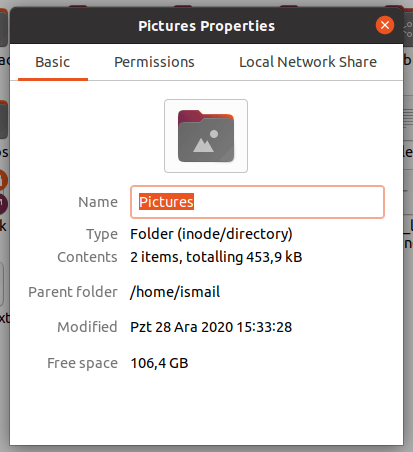
A: While the du command is the most common method, graphical file managers like Nautilus (GNOME) and Dolphin (KDE) also provide folder size information. These tools offer a visual representation of disk usage, making it easier for some users to understand.
Q: Can I automate folder size checks in Linux?
A: Absolutely. You can create scripts using the du command and schedule them to run periodically. This is useful for monitoring disk space usage over time or integrating with backup and cleanup scripts.
Leave a Comment
Comments are moderated before appearing. The data you submit is processed according to the Privacy Policy of stanford.edu.